Help centre
Thank you! Your submission has been received!
Oops! Something went wrong while submitting the form.
How can I contact Smart Pension?
Got questions about your Smart Pension account? Here are the different ways you can contact us.
Member
How can I close a Smart Pension account?
To ensure a smooth process when closing a Smart Pension account, here’s what you need to do as an employer.
Employer
How are my contributions refunded when I opt out of the scheme?
Uncover how refunds work when you opt out of the scheme.
Member
How and when do you take employer contributions?
Find out how and when we take payment once you’ve uploaded your first contributions.
Employer
Help your employees by boosting their pension savings
Things to consider if you wish to make one-off contributions for your employees.
Employer
Employee next pay period date report
Review upcoming dates for employee contributions and identify any missed dates
Employer
Completing identity and verification
How to complete identity and verification through your Smart Pension account
Member
Combining your pensions before retirement
Make preparing for retirement easier by combining your pensions into one
Member
Change who receives emails from Smart Pension
Choose who receives emails and other notifications about your Smart Pension account
Employer
Can I pay pension contributions using a bank transfer?
How to apply to pay by bank transfer if you're unable to set up a Direct Debit mandate
Employer
Bereavement process
Learn what happens to a Smart Pension pension pot when a member dies before accessing their retirement savings.
Member
Automatic postponements
Learn how to set up an automatic postponement period for all new members of your scheme.
Employer
Add money at any time by making a one-off pension contribution
Boost your pension savings without committing to regular payments.
Member
Accessing your savings at retirement
Learn how to access your Smart Pension savings at retirement. Understand your options, how to start the process, and where to access help and guidance.
Member
About PAPDIS files
Learn more about PAPDIS files and the answers to some commonly asked questions.
Employer
No results found.
Try a different search term or browse the help topics below.
Adding a new employee
Learn how to add a new employee to your company
Use the instructions below to create a new employee.
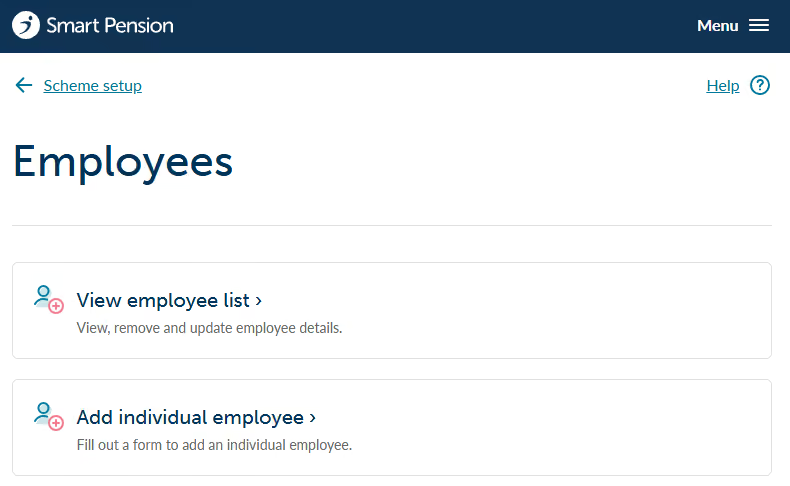
Step 1 - Sign in to your account, click on 'Menu' in the top right-hand corner and select 'Scheme Setup' from the drop-down menu. Then select 'Employees'.
Step 2 - On the next screen select 'Add individual employee'.
Step 3 - The new employee form will then appear. Please complete the relevant fields.
We recommend that you complete all fields, especially the external ID (your payroll ID) so you can associate the employee within your own payroll application or process.
Press the 'Save employee' button to create a new employee and save the details you have added.
Last updated:
October 5, 2026