No results found.
Try a different search term or browse the help topics below.
There are two ways to do this. The method you use depends on how you plan on calculating pension contributions.
1 - If you would like us to assess your employees and calculate their contributions. Then read on!
2 - If you plan on using a payroll application that does the assessment and calculations for you then that process will create employees at the same time.
For more information, please read the pre-assessed contributions support page.
Assuming you plan to use our application to assess your employees you will first need to upload your employees. This page describes how to do this.
If you have many employees you can upload them using our Employee Import tool. You can download a CSV or XLS file, complete the file and upload the details, saving you having to add the employees one at a time.
You can also add employees one at a time using the 'New employee form'.
Importing multiple employees
Use the instructions below to create multiple employees.
1 - Sign in to your account and go to Scheme Setup
2 - Select Employees
3 - Select Add/update multiple employees
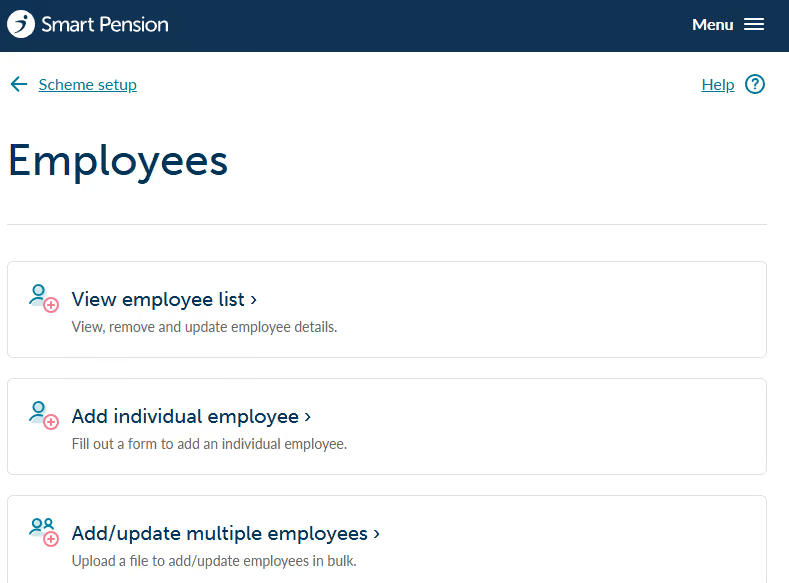
On the next screen, you will be able to download our XLS or CSV template.

3 - Complete the template and upload the file within the form
Once you have completed the template with all your employees details, you can select your file by clicking on the 'choose a file' button and then on the Upload file button.

N.B: We strongly recommend that you complete all fields, especially the external ID (your payroll ID) for each employee so you can easily associate an employee on our system within your own payroll application or process.
Once you have uploaded these employees you can then assess them using our own assessment engine.
Adding employees using a Papdis file
If you have a payroll application that does the assessment and importantly supports the Papdis format, you can add employees and send us pension contributions in the one file. See the Payroll section for more details on Papdis.
N.B. - if you have outsourced your payroll to a payroll bureau or an IFA/agent then please let them complete this process for you