No results found.
Try a different search term or browse the help topics below.
Use the instructions below to add a client you administer to your adviser account. If the client is from a transfer from another provider you will need to contact our new business team on 0330 1247 409.
How to add an individual client
1. Sign into your advisor account and go to the Clients page
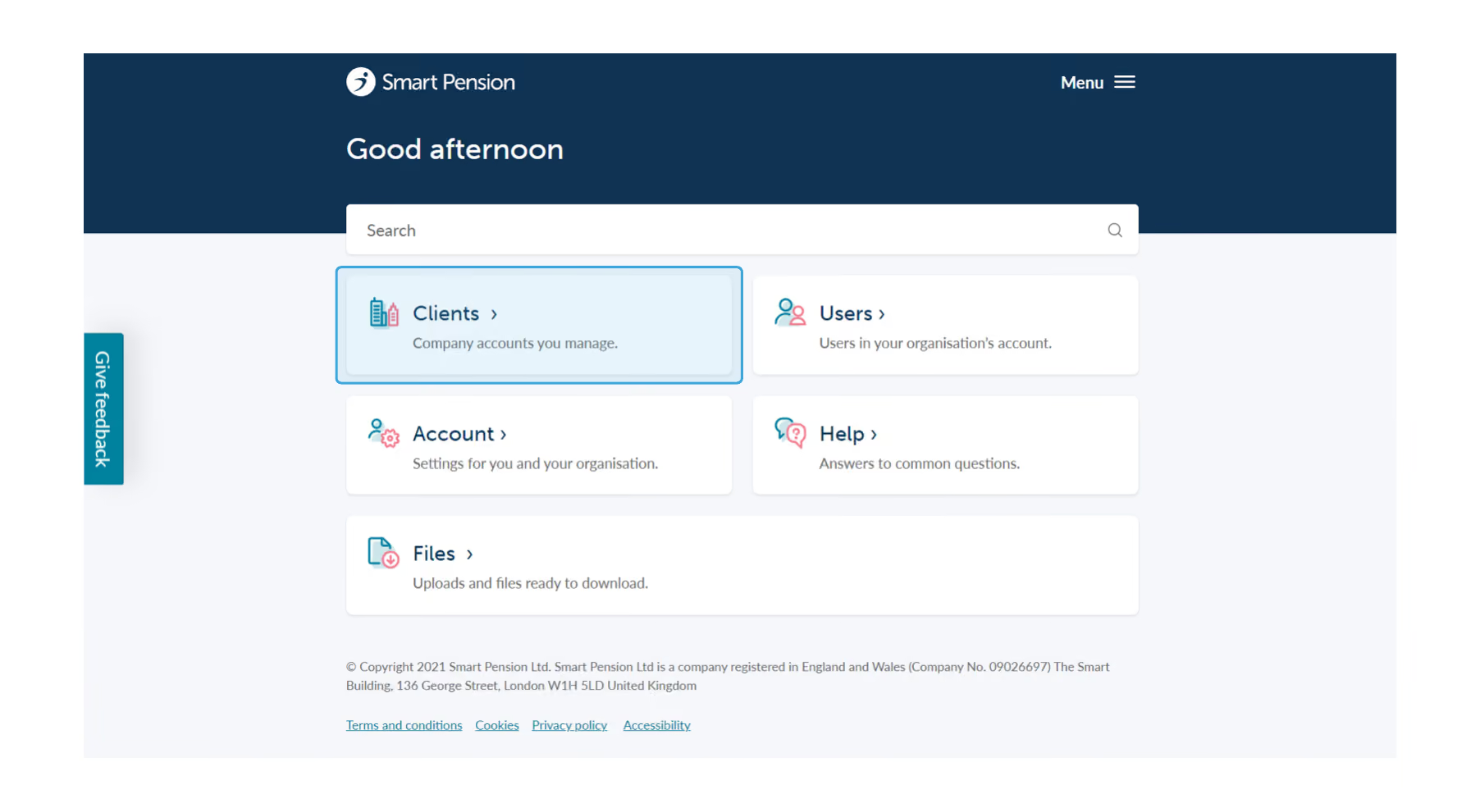
2. On the Clients page, click on the Create clients button, this will take you to a screen where you can choose to either add single or multiple clients.
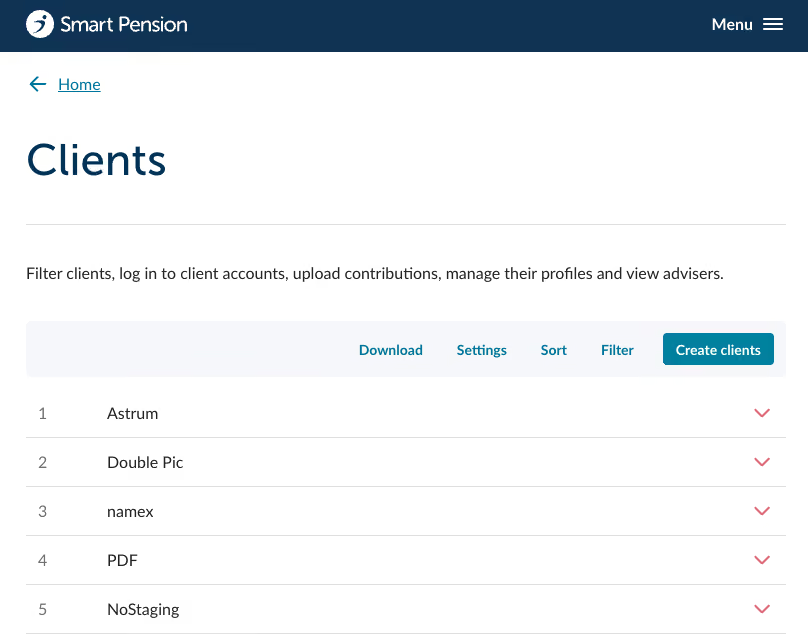
3. From here, click on Create an individual client

4. Fill in the information for the client you wish to add
- If this client doesn't have a Registration Number, for example, if they're a sole trader, use a payroll ID, bookkeeping reference or other internal ID.
- If the company's trading address is different from its registered address, be sure to tick the The trading address is different from the registered address checkbox and fill out the appropriate trading address details.
- If your client has more than one director, the 2nd director must also be a signatory. A participation agreement will be emailed to the authorised signatories for them to sign. Click on the Add new director button to add an additional director. Note: There can only be a maximum of 2 directors per client.
5. Click on the Add new director button to add additional directors.

6. Finally, press the Create client button to add the client to your adviser account's list. An activation and agreement email will be sent to the employer. The client will now show up in your list of managed clients on your adviser account.