No results found.
Try a different search term or browse the help topics below.
Automatic postponement rules can be created in the scheme setup section of your Smart Pension account. You can use the automatic postponement rule to create a common postponement period for all new members of your scheme.
Setting a new automatic postponement rule
Use the instructions below to create a new automatic postponement rule.
1 - Sign in to your account and go to Menu > Scheme Setup
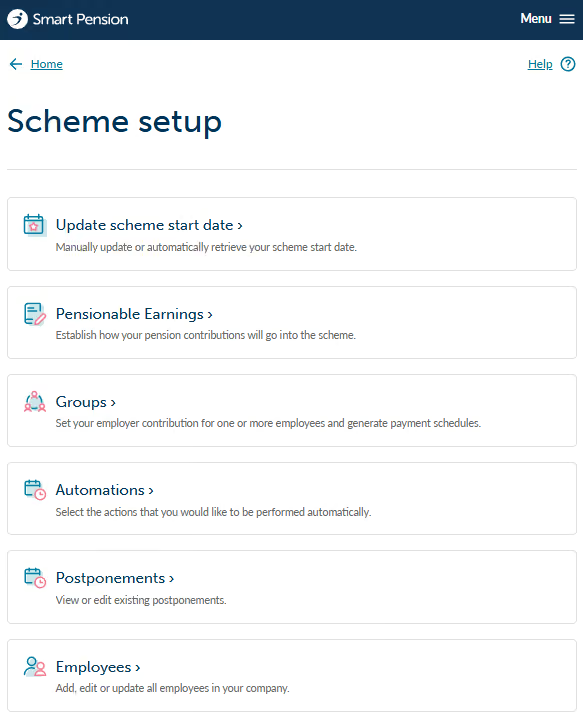
2 - Select Automations
The next screen will let you select a postponement period. If you have already set an automatic postponement period, the rule will be shown on this page.
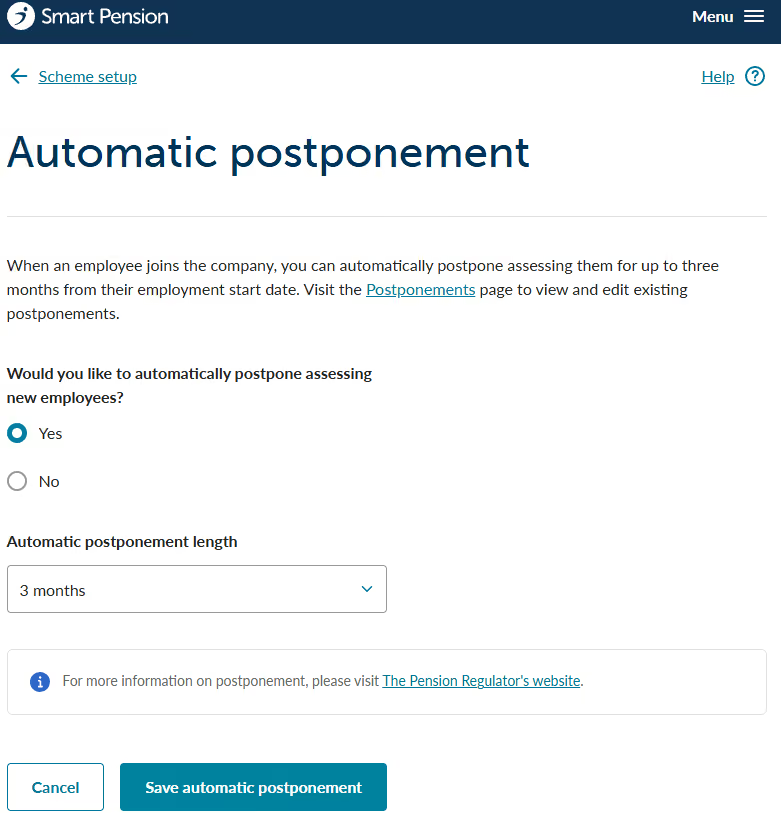
3 - Choose how long you wish to postpone your members for.
From the Automatic postponement period dropdown, you can select a period from 1 week to 3 months. Once set, all new members of the scheme will automatically have their assessment date postponed by the period you have selected for your scheme.
NB - this does not affect any existing members of your scheme.
In this example, we have set the period of three (calendar) months.
Press the Save automatic postponement button to set this rule.
4 - View your rule
Once you have set your rule you can view it on the same page.
If you have set a rule and later want to remove it you just need to return to the automatic postponement page and then change the selection to No and press Save automatic postponement.
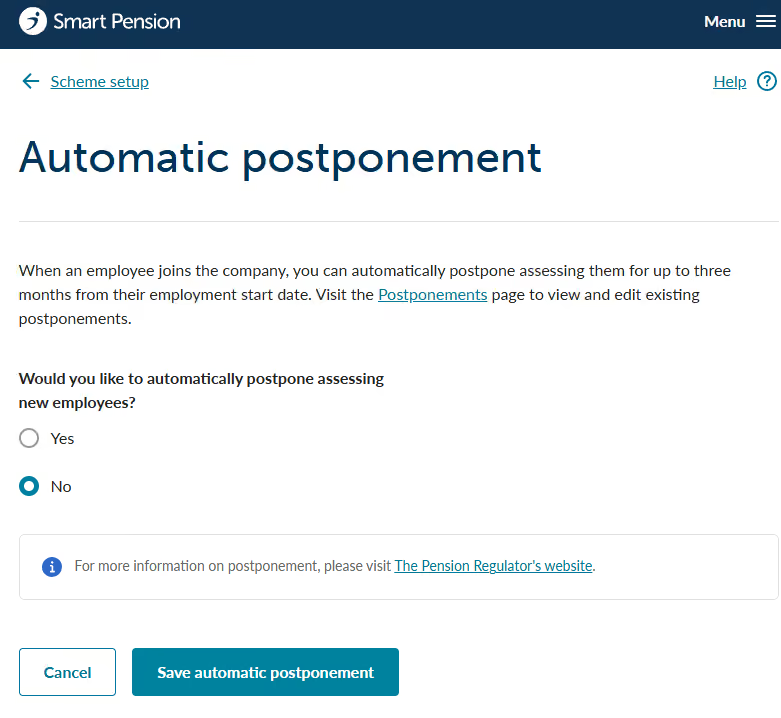
All existing postponements will continue to stay in place i.e. this action does not delete an existing deferral date. However, any new members of your scheme will no longer be automatically postponed.
What about existing members?
This is a scheme wide rule, but it is only applicable to members you add after you have set the automatic postponement period. Only new members will be postponed using this rule.
Can I select a specific deferral date?
If you want to use postponement to align with your next pay run (i.e. one month and 22 days) you have to set this rule differently. You can do this by postponing one or many members and setting a specific number of days using our bulk postpone page.
NB - don't forget to send postponement letters to your members once they have been postponed. This will show as a new task on the To Do list each time a postponement record is created.