No results found.
Try a different search term or browse the help topics below.
If your payroll application does not calculate pension contributions, don’t worry. Our assessment tool can help.
If your payroll application does calculate pension contributions, here’s how you can upload your payroll file.
Step 1 - Set up your scheme
Make sure you’ve completed your scheme set-up and have entered all your employee details.
If you are using self-certification tier 1 or 2 to determine what your employees' pensionable earnings are, you won't be able to use this tool and will need to use a payroll application to calculate your contributions.
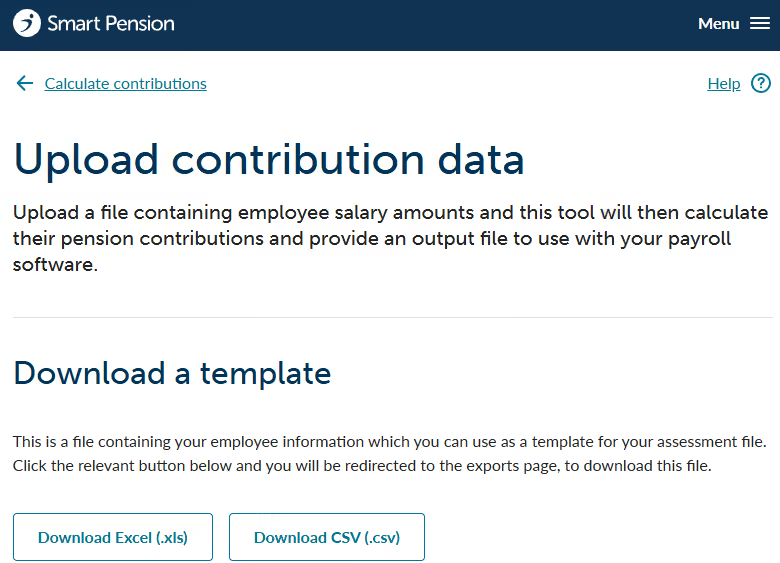
Step 2 - Download a template
- Go to the Menu and select Contributions and payroll
- Head to the Calculate contributions page
- Select Upload contributions file and download a template spreadsheet. We will pre-populate this spreadsheet with all of your employees' information.
Step 3 - Fill out the template
The template has three empty columns for you to fill out: gross qualifying earnings (GQE), pay reference period, and additional voluntary contributions (AVC).
Don't change the ID field as this is what we use to match up the employees in your spreadsheet to our system.
Gross qualifying earnings (GQE)
This is the amount of an employee's earnings that we calculate their pension contributions from. It's usually the gross earnings that they see on their payslip. Salary, wages, commissions, bonuses, overtime, and all statutory pay should make up GQE. You should also consider if allowances to employees should be part of GQE. Expenses don't count towards GQE.
Pay reference period (PRP)
This is how often your employees are paid. It can be based upon either calendar weeks or months, or tax weeks and months. You can only use one type of pay reference period per file. Using the same formatting shown here, you should use either:
- weekly
- fortnightly
- four_weekly
- monthly
- quarterly
- bi_annually
- annually
Additional voluntary contributions (AVC)
If your employee wants to make a one-off contribution to their scheme via payroll, you can add it to this column. Make sure you've added this information to your payroll software separately. We don't currently accept AVCs directly from employees.
Step 4 - Upload your file
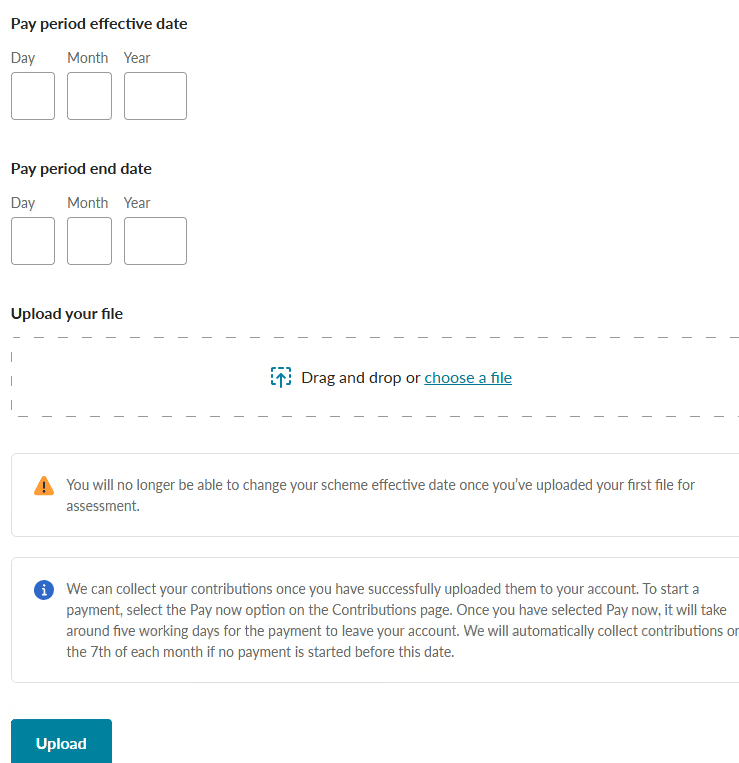
Go back to the Upload contributions file page and select your pay period start and end dates. These dates must correlate with the pay reference period you've put in your spreadsheet. Then upload your completed spreadsheet.
Step 5 - Check the calculations
Once you've uploaded your spreadsheet successfully, you will be able to see the details on the Contributions page.
Once we've calculated your contributions, we'll take payment on the 7th of the following month. If there is a mistake, you can edit or delete contribution records before midnight on the 5th of that month. If any of your employees are in an opt out period, their contributions will be taken on the next available payment date after their opt out period ends.
For more details on what your contributions page shows, you can see our dedicated help article here.