No results found.
Try a different search term or browse the help topics below.
How can I view employee contributions?
- Go to Menu
- Select Contribution and payroll and then All contributions
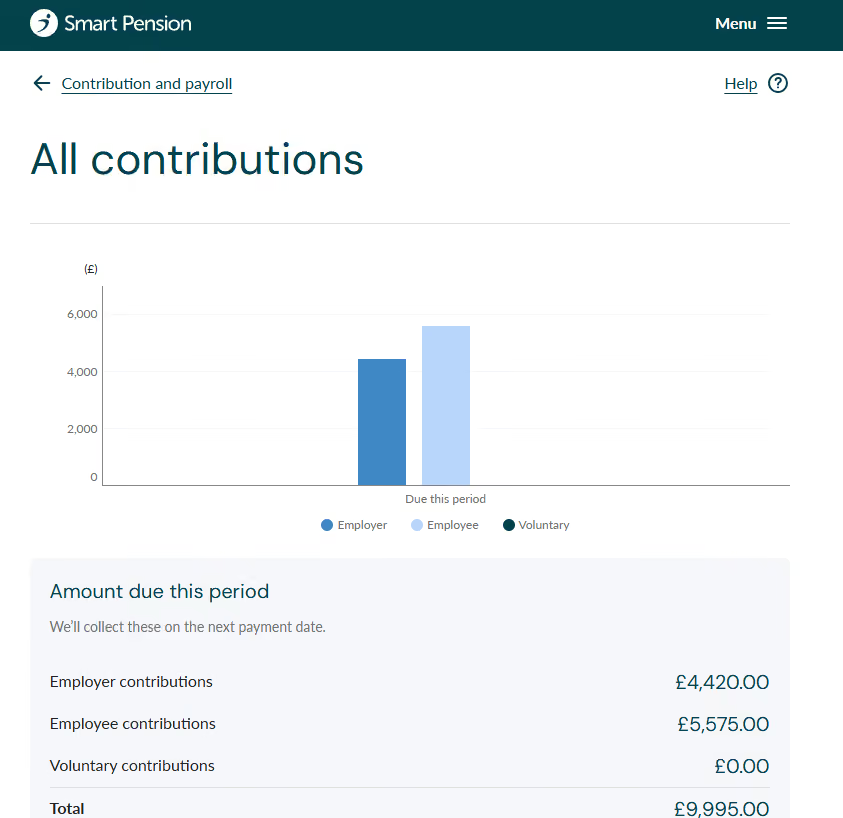
Once you’ve uploaded contribution calculations - either with a PAPDIS file, through an API submission, or through our assessment tool - they’ll be added to your ‘Contributions’ page.
The ‘Contributions’ page shows everything that's due to be paid, and the contributions that have already been paid.
How do I edit a contribution?
Using the icons on the far right column of the table below, you can change any contribution record that still shows “created” in the State column, or delete records and re-upload them if necessary.


How can I view my contribution history?
The different columns on the table show your contribution history. You can pick and choose which columns to view, including:
- State – the current status of the contribution
- Category – the assessment result for the employee
- Starts on and Ends on – the start and end date of the pay period for the contribution.
- GE – gross qualifying earnings. The portion of earnings which determine if an employee is eligible to be enrolled in the pension scheme. This column may be blank for some PAPDIS uploads or submissions from API
- PE – pensionable earnings. The portion of gross qualifying earnings pension contributions are calculated from.
- AVC – additional voluntary contributions. One-off contributions employees have made. This should not be used if you wish to make an additional contribution as an employer. Employer funded contributions can be added to existing regular contributions if needed.
- Employer (ER) amount and employee (EE) amount – the amounts that you and the employee have contributed during the pay period. These are shown as monetary amounts or percentages.
- Total contributions – the total amount contributed by both you and your employee during the pay period.
You can filter your contributions by date, employee name, and pay period duration by selecting Filter, which you’ll find above the table.
You can also export your contributions information to a downloadable file by selecting Smart export.