No results found.
Try a different search term or browse the help topics below.
If you haven't set up your Smart Pension employer account yet, please refer to our designated employer support article for Setting up a scheme. For help signing in, please visit Signing in as an employer.
Payroll and payment data
After uploading your payroll data, we recommend checking that the data matches the information in the Smart Pension employer account. This helps catch and fix any issues before they arise.
You can review and correct both payroll and payment data at any time in your contributions page. Your Smart Pension employer account also has functionality allowing you to filter payroll data by employee, payment period and the current payment status for each contribution.
To get to your Contributions page, go to Menu, select Contribution and payroll and then All Contributions.
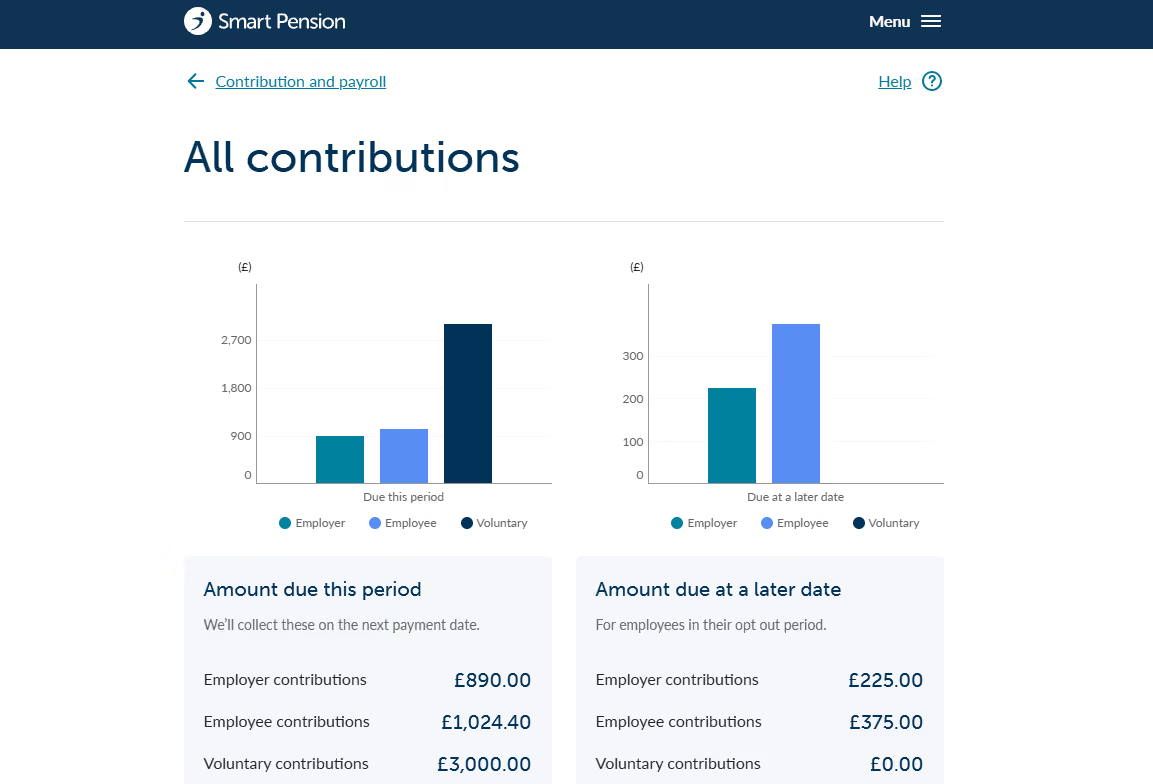
Once on this page, scroll down to the bottom, where you will see a table with contribution details. To use the filter function, select Filter (just above the table, on the right) where you can then select which variable you would like to filter by.

We also have a help article on Understanding your contributions with further information about your All contributions page.
How to run a ‘health check’
A 'health check' can be run to understand if there are any outstanding contributions to be submitted. This is a helpful tool to keep your data in your Smart Pension employer account as up to date as possible.
To run a health check, simply go to Menu and select Contributions & Payroll, then click Employee next pay period. You can either download a report, or manually use the filter options on the page. For a detailed explanation on how to run a report, visit our helpful support article.
Best practice for maintenance
To help your Smart Pension employer account help you and your employees, it might be helpful to conduct checks on your data at least quarterly, or when you’re updating key employee details within the account.