Help centre
Read time:
XX

Chapters:

Chapters
Updating a group name
Learn how to change a group name

As an admin or signatory, you can access your Groups and update their names.

This page is visible by the person responsible for managing the scheme (Administrators or Advisers).

Updating your group name

Use the instructions below to update a group name.

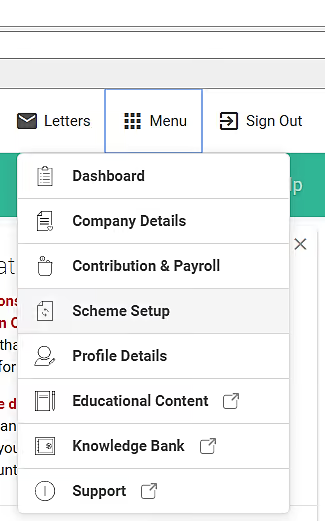
1 - Sign in to your account and click on 'Menu' in the top right-hand corner. Then select 'Scheme Setup' from the drop-down box.
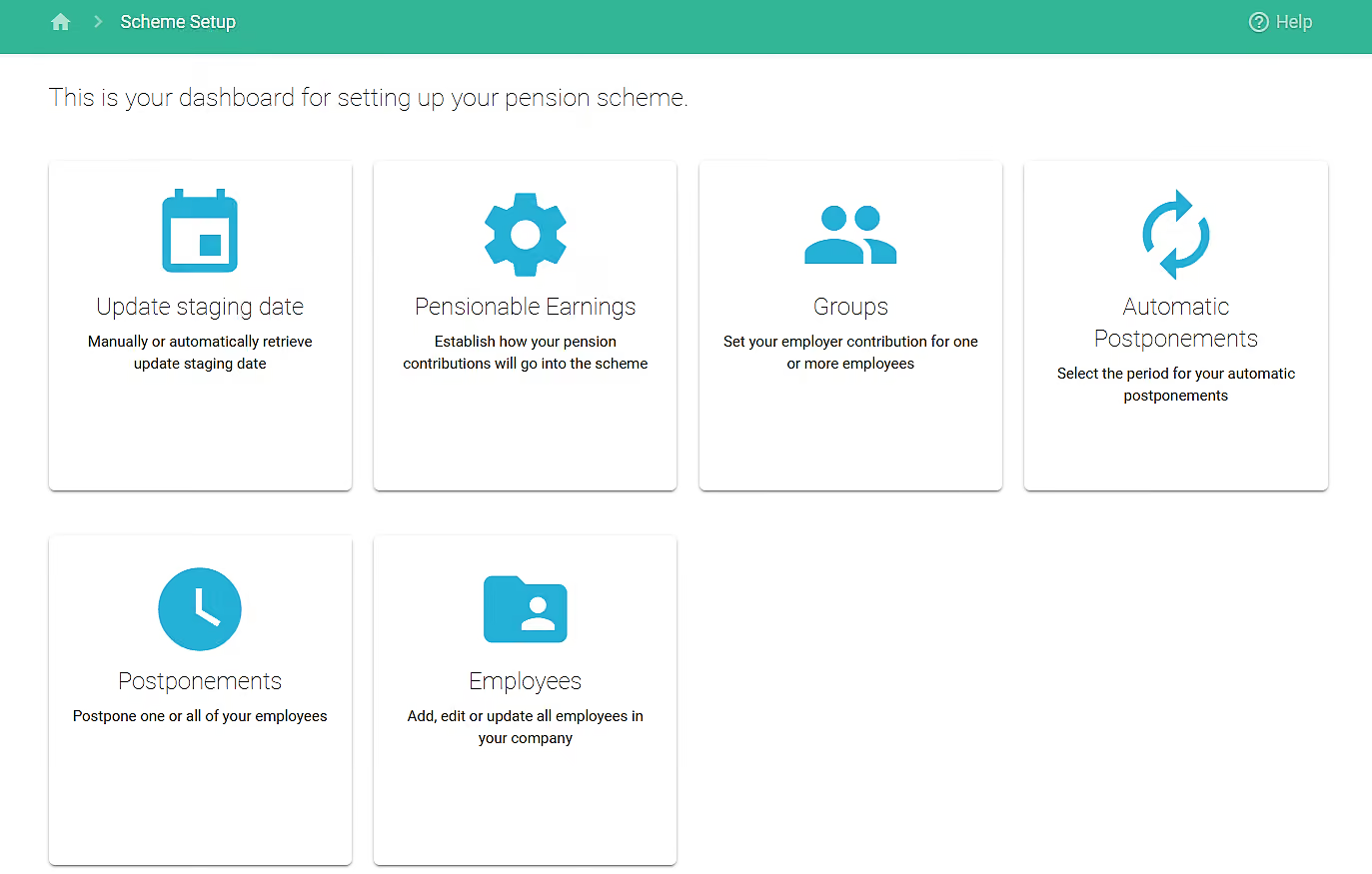
2 - On the Scheme Setup dashboard, select the 'Groups' category
3- On the next page you will have the option to select the pencil icon next to the group name you wish to update.
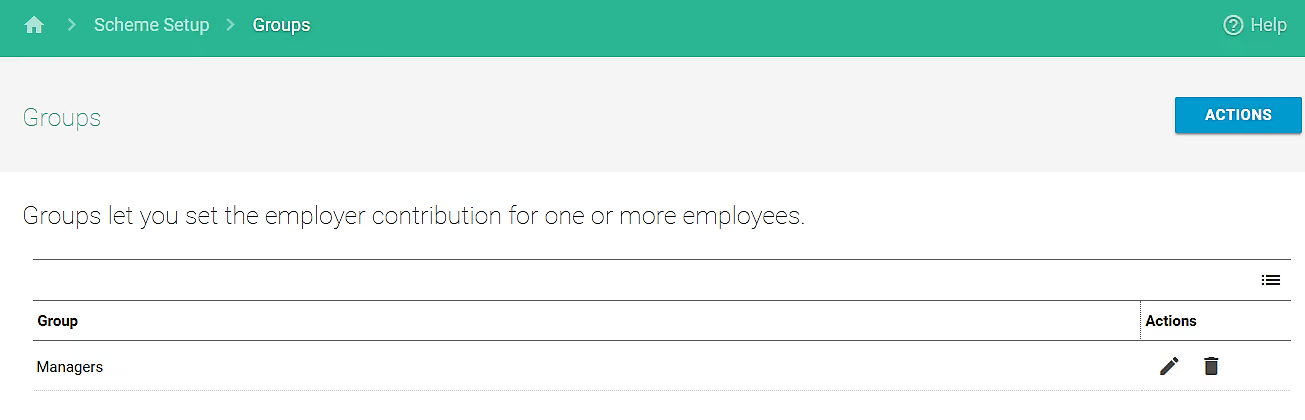
User interface for setting employer contribution groups in a scheme setup. It displays a breadcrumb navigation: Home > Scheme Setup > Groups. The page title is Groups, with a description stating groups allow setting employer contribution for employees. A table lists one group named Managers with edit and delete icons under Actions. A blue ACTIONS button is on the top right. A Help icon is in the top right corner of the green header bar.

3 - Update name field

Visiting the group update page, the following form will be shown.
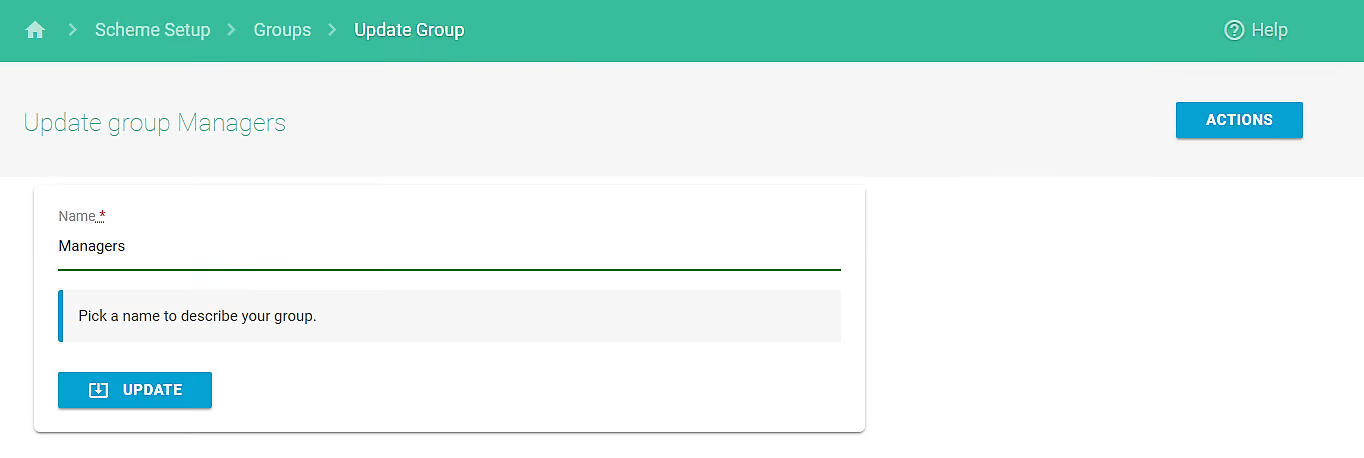
Webpage interface to update a group named Managers with a text input field and an Update button below it, plus a breadcrumb navigation and Actions button at the top right.

Type the updated group name and press the blue 'Update' button to save your changes.

All previous employees will remain in this group. If you wish to assign one or many employees to an existing group name, you can use the bulk update tool.

Last updated:
October 5, 2026

Related articles

Updating your staging date or duties start date

Updating your scheme details

Updating and managing signatories and admins

Personalising Smart Pension for your employees

Managing company details

Thank you for your feedback!
Oops! Something went wrong while submitting the form.